
Last Updated on March 19, 2026 by Laura Coronel
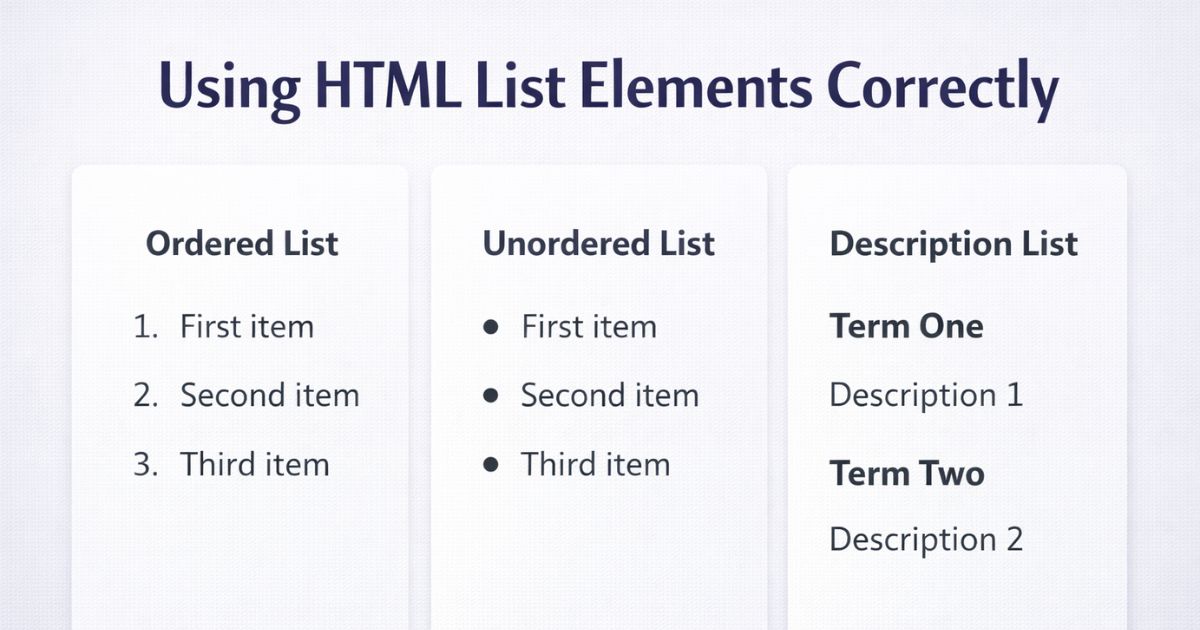
HTML provides three list elements: <ol> for ordered lists, <ul> for unordered lists, and <dl> for description lists. Choosing the right one isn’t just about appearance — it affects the meaning of your content and how assistive technologies interpret it. This guide covers when to use each element, how to style them, and the accessibility considerations that apply.
Contents
Ordered Lists
Use <ol> when the sequence of items matters — steps in a process, ranked results, instructions that must be followed in order. Each item is marked up with <li>.
html
<ol>
  <li>Preheat the oven to 180°C</li>
  <li>Mix the dry ingredients</li>
  <li>Add the wet ingredients and stir</li>
  <li>Pour into a greased tin</li>
  <li>Bake for 25 minutes</li>
</ol>
By default the browser numbers items starting from 1. Two attributes let you change this behaviour.
start sets the opening number:
html
<ol start="3">
  <li>Mix the dry ingredients</li>
  <li>Add the wet ingredients and stir</li>
</ol>
reversed counts down instead of up:
html
<ol reversed>
  <li>Gold medal</li>
  <li>Silver medal</li>
  <li>Bronze medal</li>
</ol>
Unordered Lists
Use <ul> when the items have no meaningful sequence — a shopping list, a set of features, a collection of links. Order could change without affecting what the list communicates.
html
<ul>
  <li>Rucksack</li>
  <li>Compass</li>
  <li>Map</li>
  <li>Water bottle</li>
  <li>Jacket</li>
</ul>
By default the browser displays a bullet point beside each item. The CSS section below covers how to change or remove this.
Navigation menus are one of the most common uses for <ul>. Wrapping links in a list inside a <nav> element is the correct semantic pattern — it communicates to screen readers that the links are related and part of a navigational structure:
html
<nav aria-label="Main navigation">
  <ul>
    <li><a href="/">Home</a></li>
    <li><a href="/courses">Courses</a></li>
    <li><a href="/blog">Blog</a></li>
    <li><a href="/about">About</a></li>
  </ul>
</nav>
Description Lists
Use <dl> for groups of terms and their associated descriptions or values. Terms are marked up with <dt>, descriptions with <dd>. One term can have multiple descriptions, and multiple <dd> elements are assumed to belong to the last <dt> encountered.
html
<dl>
  <dt>Author</dt>
  <dd>Matt West</dd>
  <dt>Published</dt>
  <dd>March 2014</dd>
  <dt>Category</dt>
  <dd>HTML</dd>
  <dd>Front-End Development</dd>
</dl>
Description lists are well-suited to FAQ pages, where questions are terms and answers are descriptions:
html
<dl>
  <dt>Do I need prior experience to start?</dt>
  <dd>
    No prior experience is required. The beginner courses assume no
    existing knowledge of HTML, CSS, or JavaScript.
  </dd>

  <dt>How long does each course take?</dt>
  <dd>
    Course lengths vary. Most introductory courses can be completed
    in a few hours; full tracks typically take several weeks.
  </dd>
</dl>
This gives the FAQ meaningful structure in the document outline rather than relying on styled headings and paragraphs that don’t communicate the relationship between question and answer.
Styling Lists with CSS
Changing the marker
The list-style-type property sets the marker style. Common values include disc, circle, square for unordered lists, and decimal, lower-roman, upper-alpha for ordered lists. Set it to none to remove markers entirely:
css
ul {
  list-style-type: circle;
}

ol {
  list-style-type: lower-roman;
}

/* Remove markers — common when styling navigation */
nav ul {
  list-style: none;
  padding: 0;
  margin: 0;
}
Marker position
list-style-position controls whether the marker sits outside the list item’s content box (the default) or inside it. outside is generally preferable for readability as it keeps wrapped text aligned cleanly:
css
ul {
  list-style-position: outside; /* default */
}
Custom markers with ::marker
The ::marker pseudo-element is the modern way to style list markers directly — changing colour, size, or content — without replacing them with a background image:
css
li::marker {
  color: #5ece7f;
  font-size: 1.2em;
}
This is cleaner and more maintainable than the older list-style-image approach, which required managing image files and offered limited control over sizing and positioning.
The list-style shorthand
list-style lets you set type, position, and image in one declaration:
css
ul {
  list-style: square inside none;
}
Accessibility Considerations
Removing list styles affects semantics in Safari. When you apply list-style: none to a <ul>, VoiceOver on Safari stops announcing the element as a list. If the list meaning is still relevant to users — for example, a navigation menu — add role="list" to the <ul> to preserve it:
html
<ul role="list" style="list-style: none;">
  <li><a href="/">Home</a></li>
  <li><a href="/about">About</a></li>
</ul>
For purely decorative lists where the list relationship genuinely doesn’t matter, omitting the role is fine.
Nest lists to reflect genuine hierarchy. Nested <ul> or <ol> elements are valid and useful for representing sub-items, but don’t nest lists purely for visual indentation. Use CSS margin or padding for that instead — unnecessary nesting adds noise to the document structure and makes screen reader navigation more cumbersome.
Use the right element for the right job. If sequence matters, use <ol>. If it doesn’t, use <ul>. Choosing purely for visual appearance — picking <ol> because you want numbers, or <ul> because you want bullets — disconnects the markup from its meaning. Style is the job of CSS.








i have one list element that list active style is not applying ?
Probably the best laid out information so far. I also need to know if the outside version will keep a whole bunch of text inline with the first line?????
thankyou
This is a helpful article for me, I really appreciate you efforts 🙂
Gotta love HTML5 😀
Your ordered lists examples don’t work in the feedreader. fyi 🙂
I almost overlooked the article thinking my 15 plus years of designing sites made it irrelevant, but I had no clue you could start OLs at a specific number or reverse the counts. Learned something new. Thank you!
Many many thanks for good sharing. Really, it is informative & helpful. As a web designer I realize its utility.
very helpful
this is a very helpful article thank you