
Last Updated on March 19, 2026 by Laura Coronel
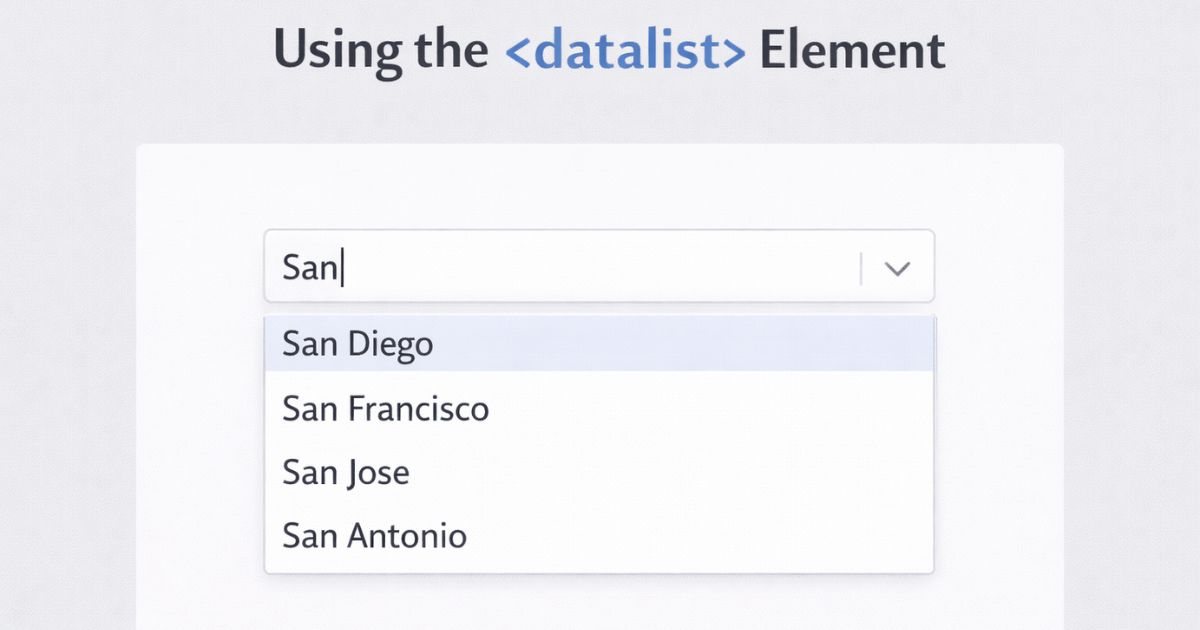
The <datalist> element lets you add native autocomplete suggestions to any text input without JavaScript or a third-party library. The browser handles the filtering and display automatically. This guide covers how to use it, how to populate it dynamically from an API, its limitations, and when to reach for a custom solution instead.
Contents
Basic Usage
Attach a <datalist> to an <input> by giving the datalist an id and setting the input’s list attribute to that same value. Wrap both in a <label> for accessibility.
html
<label for="language">Programming language</label>
<input type="text" id="language" list="languages" placeholder="e.g. JavaScript">

<datalist id="languages">
  <option value="HTML">
  <option value="CSS">
  <option value="JavaScript">
  <option value="TypeScript">
  <option value="Python">
  <option value="Ruby">
  <option value="Go">
  <option value="Rust">
  <option value="Java">
  <option value="PHP">
  <option value="C">
  <option value="C#">
  <option value="C++">
</datalist>
That’s all the markup you need. As the user types, the browser filters the options and displays matches in a dropdown. The user can select a suggestion or type any value they choose — <datalist> provides suggestions, not constraints.
Populating Options Dynamically
For larger datasets, fetch options from an external source and build the <datalist> at runtime. The modern approach uses fetch with async/await rather than XMLHttpRequest.
Start with the HTML — the <datalist> starts empty and the placeholder signals that options are loading:
html
<label for="element">HTML element</label>
<input type="text" id="element" list="html-elements" placeholder="Loading options...">

<datalist id="html-elements"></datalist>
Then populate it once the data is ready:
js
const input = document.getElementById('element');
const dataList = document.getElementById('html-elements');

const loadOptions = async () => {
  try {
    const response = await fetch('html-elements.json');

    if (!response.ok) {
      throw new Error(`Request failed with status ${response.status}`);
    }

    const items = await response.json();

    items.forEach(item => {
      const option = document.createElement('option');
      option.value = item;
      dataList.appendChild(option);
    });

    input.placeholder = 'e.g. datalist';
  } catch (error) {
    input.placeholder = 'Could not load options';
    console.error('Failed to load datalist options:', error);
  }
};

loadOptions();
The JSON file can be a simple array of strings:
json
["article", "aside", "datalist", "details", "dialog", "figure", "main", "section", "summary"]
Or an array of objects if you need to distinguish between the displayed label and the submitted value:
html
<option value="js">JavaScript</option>
Limitations
<datalist> is the right tool for a specific job. Before using it, check whether these limitations affect your use case.
You cannot style the dropdown. The suggestion list is rendered by the browser using native UI. CSS has no access to it. If your design requires a custom-styled dropdown, <datalist> won’t work.
Matching is prefix-based. The browser shows options that start with what the user has typed. There is no fuzzy matching or contains-based filtering. If a user types “script” they won’t see “JavaScript” — only entries that begin with “script”.
Users can submit any value. <datalist> suggests options but does not enforce them. If you need users to select only from a defined list, use <select> instead. You can validate the submitted value server-side, but there’s no built-in browser enforcement.
Screen reader support is inconsistent. Some screen readers do not announce <datalist> suggestions reliably. For forms where selecting a specific value is critical, a JavaScript autocomplete component with full ARIA support is a more accessible choice.
Not suitable for very large datasets. All options are rendered into the DOM at once. For thousands of entries, a server-backed autocomplete with request-as-you-type behaviour will perform better.
When to Use <datalist> vs a Custom Solution
Use <datalist> when:
- You want to suggest common values but allow free text entry (e.g. a country field, a tag input)
- You have a small-to-medium list of options (up to a few hundred)
- You don’t need to style the dropdown
- The form is supplementary and not accessibility-critical
Use a custom autocomplete component when:
- You need styled or branded dropdown UI
- You need fuzzy or contains-based matching
- The list is server-backed and request-as-you-type
- Full, consistent screen reader support is required








Hi, thank u very much for this , can you tell how to do that with Jquery ? Now it doesnt work with single page app (when the page is called dynamically with javascript).
Hi, im working on a school project and I wanna know if this code will work if used in hybrid mobile development using cBordova? Because I’ve tried many source codes which will autocomplete a dropdown datalist but it only work when im using a browser and not when i integrate it with my code. I’m new to all of these so please bare with me. thanks!
Hi I have a text box with datalist written in a jsp, like below
…
I want the value of datalist to be autopopulated from SQL based on text entered in text box.
Suppose I enter ‘Banga’ automatically Bangalore shud be fetched from DB and i should be able to select that into text box.
Text box and datalist should be one field only not 2. How do i do this please help me. I am new to JSP and i am unable to find help on this.
This blog post has just gone in at my No#1 best example of practical JS.
Apologies for the plagiarism but I’ve just copied that Ajax template of yours and popping in a call to my own REST api instead of the file read it worked first time.
Not only is that a first, but it’s so clearly explained.
Really impressive.
THANK YOU.
love tree house always for what they are doing. very easy to understand explanation of each and every point for this topic. Great article once again from your side
Actually it is showing error “Cannot set property ‘placeholder’ of null” but when I printed the jsonOptions in console, it is printing the array that it fetching from the json file.
So can you suggest some solution for this error?
Thanks in Advance
Is there a way to limit the size of dropdown list window?
Great Tutorial but this is the error which i am facing and i have already gone through different solutions available but couldn’t solve this issue:
ajaxautocomplete.html:26 Uncaught TypeError: Cannot set property ‘appendChild’ of null
at ajaxautocomplete.html:26
at Array.forEach ()
at XMLHttpRequest.request.onreadystatechange (ajaxautocomplete.html:20)
Thanks guys, problem is resolved!
Hello,
Do we option to select more then one input from the drop down menu?
There is a way to do it by “select multiple” attribute in HTML5 and we can do it through js too.
But I want to select the same option more then one time.
Please let me know if there is any alternative.
Thanks.
Hey,
Thank for the tutorial.
I can’t seem to create a legit request variable.
I’m using backbone and receiving back, as an AJAX result, a collection.
Shouldn’t request = JSON.stringify(collection) do the trick [as it generates a valid JSON out of the collection]?
The error I’m receiving in the chrome’s console is “Cannot create property ‘onreadystatechange’ on string”
Thanks
Hey!
Can you share your code in a gist (https://gist.github.com) and I’ll take a look to see what’s wrong.
Pretty Cool, thanks for sharing 🙂
Great Tutorial Matt.
Is there a way to limit the size of dropdown list window. I have created a similar autocomplete dropdown with a lot options.
Awesome feature, and very to easy follow tutorial of how it is to be used.
Thanks Matt!
awesome!
thanks a lot
what this json code get a data from database with query?
Thank you, I’ve recently been searching for info approximately this topic for a long time and yours is the best I have found out till now. However, what about the bottom line? Are you positive concerning the source?|
It would be interesting if you could gather screenshots across a range of mobile devices to see how their ‘adaptive’ interfaces handle this (E.G. when a user interacts with a number field they’re displayed a keyboard with only numbers).
Hi Matt,
Unfortunately I don’t think this is supported on mobile yet (except in the Blackberry browser).
Source: http://caniuse.com/#feat=datalist
It looks like iOS is certainly behind =(
Both Chrome and Firefox on Android (4.4) support it, https://dl.dropboxusercontent.com/u/2664340/Screenshot_2014-03-12-11-15-25.png
Great post Matt 🙂 I had no idea that the datalist element existed and that it could do native browser autocompletion
Thanks for reading Brandon 🙂